Amazon FSx for Windows File Server on AWS
Partner Solution Deployment Guide

August 2023
Aaron Lima and Dave May, AWS Integration and Automation

| Refer to the GitHub repository to view source files, report bugs, submit feature ideas, and post feedback about this Partner Solution. To comment on the documentation, refer to Feedback. |
This Partner Solution was created by Amazon Web Services (AWS). Partner Solutions are automated reference deployments that help people deploy popular technologies on AWS according to AWS best practices. If you’re unfamiliar with AWS Partner Solutions, refer to the AWS Partner Solution General Information Guide.
Overview
This guide covers the information you need to deploy Amazon FSx in the AWS Cloud.
This Partner Solution is for IT infrastructure architects, administrators, and DevOps professionals who are planning to implement Microsoft Windows file systems on AWS.
Costs and licenses
There is no cost to use this Partner Solution, but you will be billed for any AWS services or resources that this Partner Solution deploys. For more information, refer to the AWS Partner Solution General Information Guide.
Architecture
Deploying this Partner Solution for a new virtual private cloud (VPC) with default parameters builds the following FSx for Windows File Server environments in the AWS Cloud, depending on the Active Directory scenario that you choose.
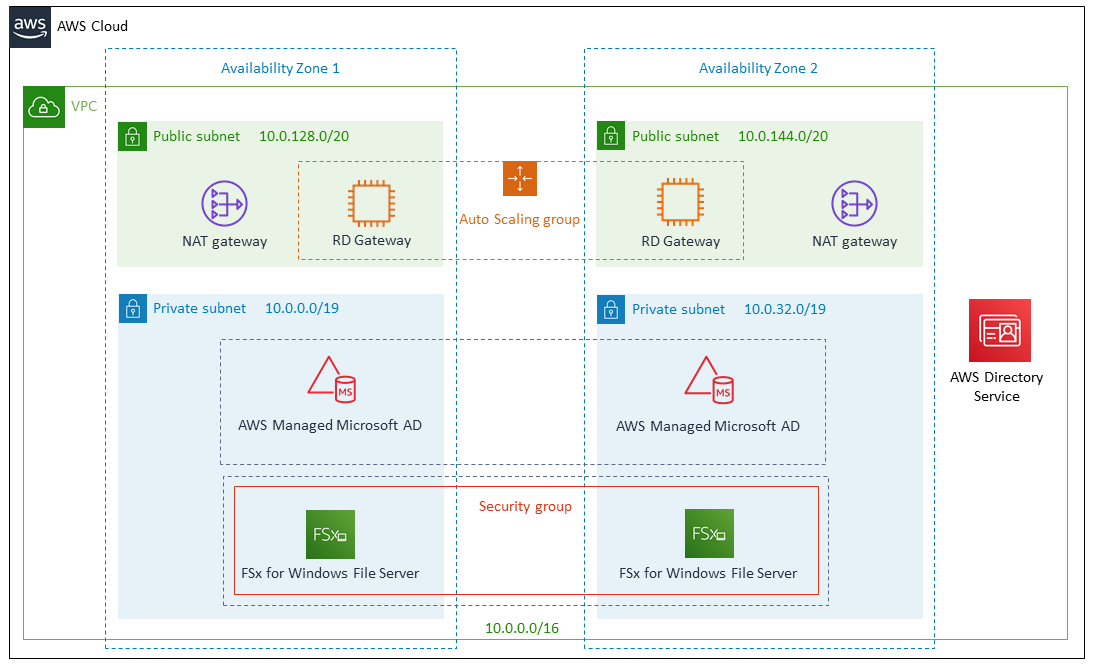
AWS Managed Microsoft AD
The Partner Solution sets up the following:
-
A highly available architecture that spans two Availability Zones*
-
A VPC configured with public and private subnets according to AWS best practices, to provide you with your own virtual network on AWS*
-
In the public subnets:
-
Managed NAT gateways to allow outbound internet access for resources in the private subnets*
-
A Remote Desktop Gateway (RD Gateway) host in an Auto Scaling group to allow inbound Remote Desktop Protocol (RDP) access to Amazon Elastic Compute Cloud (Amazon EC2) instances in public and private subnets*
-
In the private subnets:
-
An AWS Managed Microsoft AD domain*
-
FSx for Windows File Server
* The template that deploys the Partner Solution into an existing VPC skips the components marked by asterisks and prompts you for your existing VPC configuration.
Self-managed Active Directory
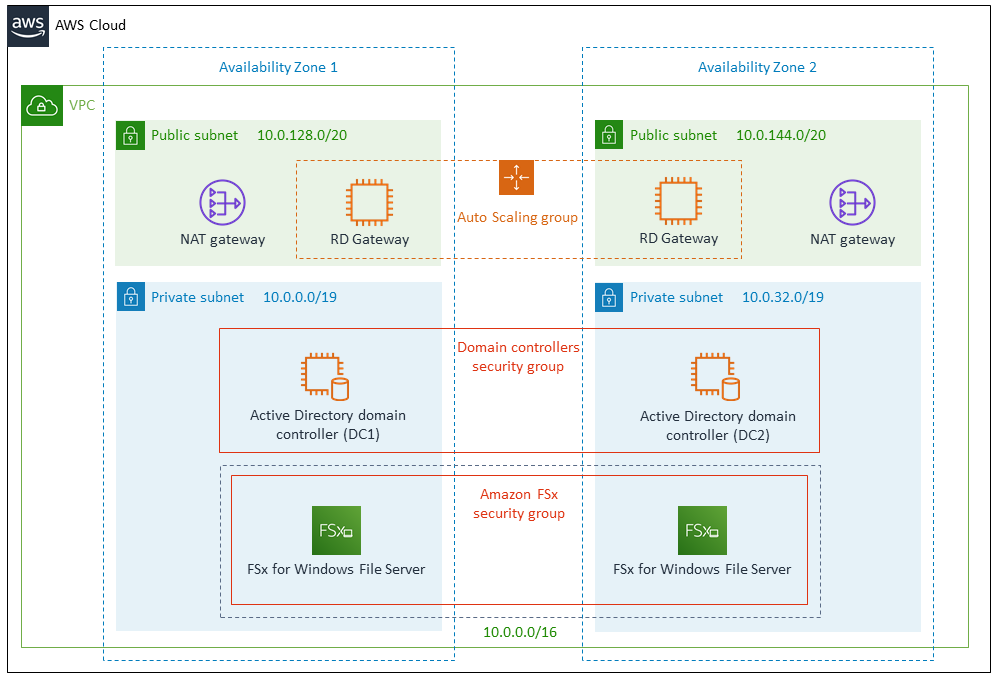
The Partner Solution sets up the following:
-
A highly available architecture that spans two Availability Zones*
-
A VPC configured with public and private subnets according to AWS best practices, to provide you with your own virtual network on AWS*
-
In the public subnets:
-
Managed NAT gateways to allow outbound internet access for resources in the private subnets*
-
An RD Gateway host in an Auto Scaling group to allow inbound RDP access to EC2 instances in public and private subnets.
-
In the private subnets:
-
Self-managed Active Directory on EC2 instances*
-
FSx for Windows File Server
* The template that deploys the Partner Solution into an existing VPC skips the components marked by asterisks and prompts you for your existing VPC configuration.
Deployment options
This Partner Solution provides the following deployment options:
-
Deploy Amazon FSx for Windows File Server into a new VPC (end-to-end deployment). This option builds a new AWS environment that consists of the VPC, subnets, NAT gateways, security groups, bastion hosts, and other infrastructure components. It then deploys Amazon FSx for Windows File Server into this new VPC.
-
Deploy Amazon FSx for Windows File Server into an existing VPC. This option provisions Amazon FSx for Windows File Server in your existing AWS infrastructure.
This Partner Solution provides separate templates for these options. It also lets you configure Classless Inter-Domain Routing (CIDR) blocks, instance types, and Amazon FSx for Windows File Server settings.
Deployment steps
-
Sign in to your AWS account, and launch this Partner Solution, as described under Deployment options. The AWS CloudFormation console opens with a prepopulated template.
-
Choose the correct AWS Region, and then choose Next.
-
On the Create stack page, keep the default setting for the template URL, and then choose Next.
-
On the Specify stack details page, change the stack name if needed. Review the parameters for the template. Provide values for the parameters that require input. For all other parameters, review the default settings and customize them as necessary. When you finish reviewing and customizing the parameters, choose Next.
Unless you’re customizing the Partner Solution templates or are instructed otherwise in this guide’s Predeployment section, don’t change the default settings for the following parameters: QSS3BucketName,QSS3BucketRegion, andQSS3KeyPrefix. Changing the values of these parameters will modify code references that point to the Amazon Simple Storage Service (Amazon S3) bucket name and key prefix. For more information, refer to the AWS Partner Solutions Contributor’s Guide. -
On the Configure stack options page, you can specify tags (key-value pairs) for resources in your stack and set advanced options. When you finish, choose Next.
-
On the Review page, review and confirm the template settings. Under Capabilities, select all of the check boxes to acknowledge that the template creates AWS Identity and Access Management (IAM) resources that might require the ability to automatically expand macros.
-
Choose Create stack. The stack takes about 1.5 hours to deploy.
-
Monitor the stack’s status, and when the status is CREATE_COMPLETE, the Amazon FSx for Windows File Server deployment is ready.
-
To view the created resources, choose the Outputs tab.
Postdeployment steps
Test the deployment
After the Partner Solution is deployed, you can deploy a single EC2 Windows instance and map it to the file share by following the steps in the Amazon FSx for Windows File Server documentation.
For further information on administering file systems, see the Amazon FSx for Windows File Server documentation.
For more information on security for Amazon FSx for Windows File Server, see the Amazon FSx for Windows File Server documentation.
Troubleshooting
For troubleshooting common Partner Solution issues, refer to the AWS Partner Solution General Information Guide and Troubleshooting CloudFormation.
Customer responsibility
After you deploy a Partner Solution, confirm that your resources and services are updated and configured—including any required patches—to meet your security and other needs. For more information, refer to the Shared Responsibility Model.
Feedback
To submit feature ideas and report bugs, use the Issues section of the GitHub repository for this Partner Solution. To submit code, refer to the Partner Solution Contributor’s Guide. To submit feedback on this deployment guide, use the following GitHub links:
Notices
This document is provided for informational purposes only. It represents current AWS product offerings and practices as of the date of issue of this document, which are subject to change without notice. Customers are responsible for making their own independent assessment of the information in this document and any use of AWS products or services, each of which is provided "as is" without warranty of any kind, whether expressed or implied. This document does not create any warranties, representations, contractual commitments, conditions, or assurances from AWS, its affiliates, suppliers, or licensors. The responsibilities and liabilities of AWS to its customers are controlled by AWS agreements, and this document is not part of, nor does it modify, any agreement between AWS and its customers.
The software included with this paper is licensed under the Apache License, version 2.0 (the "License"). You may not use this file except in compliance with the License. A copy of the License is located at https://aws.amazon.com/apache2.0/ or in the accompanying "license" file. This code is distributed on an "as is" basis, without warranties or conditions of any kind, either expressed or implied. Refer to the License for specific language governing permissions and limitations.